Two-Factor Authentication
2FA adds an extra layer of security by requiring a code from your phone when you sign in.
What You Need
An authenticator app: - Google Authenticator - Authy - 1Password - Microsoft Authenticator
Setup
Go to Settings > Security and find the Two-Factor Authentication section:
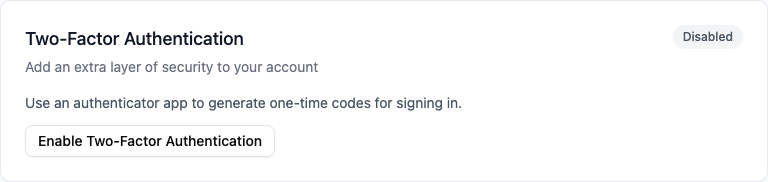
- Click Enable Two-Factor Authentication
- Scan the QR code with your app
- Enter the 6-digit code to verify
- Save your backup codes in a safe place
Backup Codes
After enabling 2FA, you get 10 backup codes. These let you sign in if you lose your phone. Store them somewhere safe (not on your phone).
Signing In
After enabling: 1. Enter email and password 2. Enter 6-digit code from your app 3. Click Verify
Disabling
Go to Settings > Security and click Disable Two-Factor Authentication.