Preferences
Control how the app looks, how you receive notifications, and other personal settings.
Accessing Preferences
Go to Settings > Preferences.
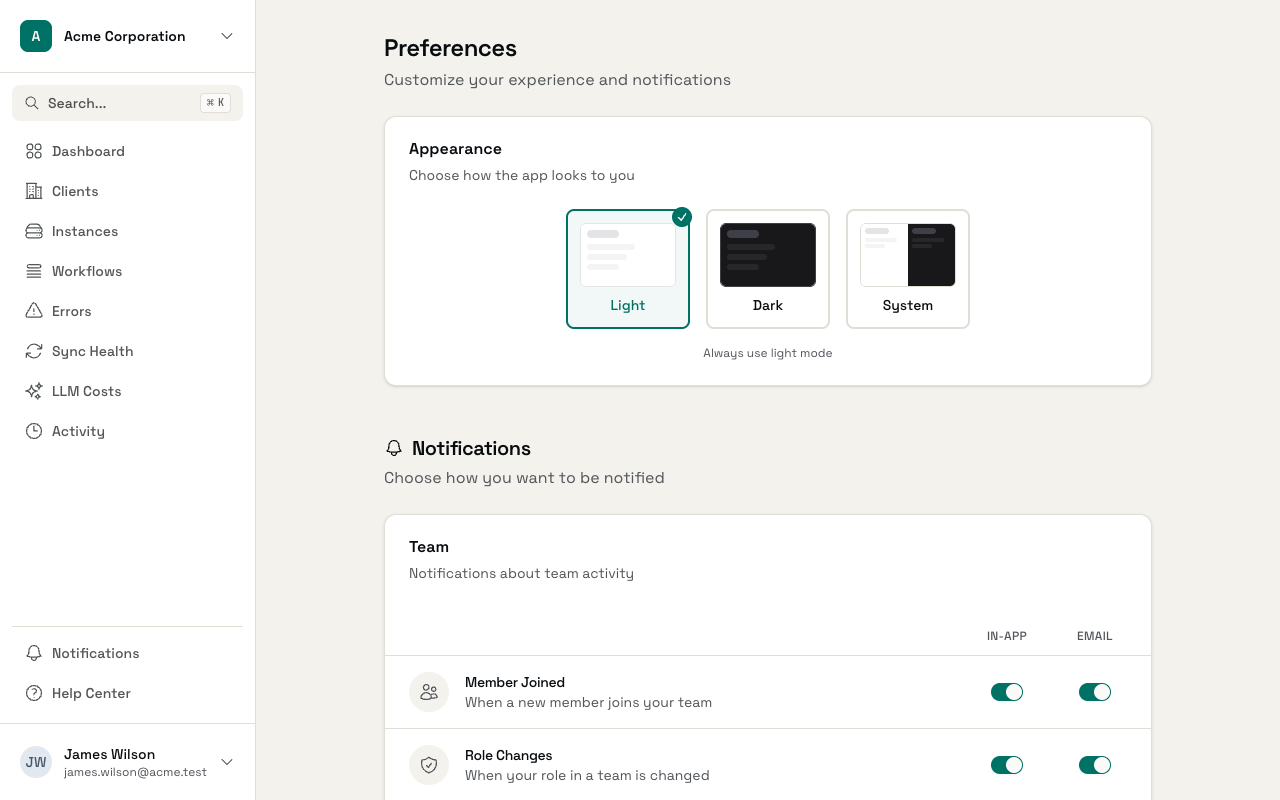
Appearance
Choose how the app looks to you:
- Light - Standard light theme
- Dark - Dark theme for low-light environments
- System - Automatically matches your device settings
Click any option to switch immediately. If you pick System, the app follows your operating system's light/dark mode setting.
In-app Notifications
These control which notifications appear in the app's notification bell.
Team Notifications
- Team invitations received
- New members joining
- Role changes
Billing Notifications
- Subscription renewals
- Trial ending reminders
System Notifications
- Important announcements
Toggle each notification type on or off. Some notifications can't be disabled because they contain information you need to see.
Email Notifications
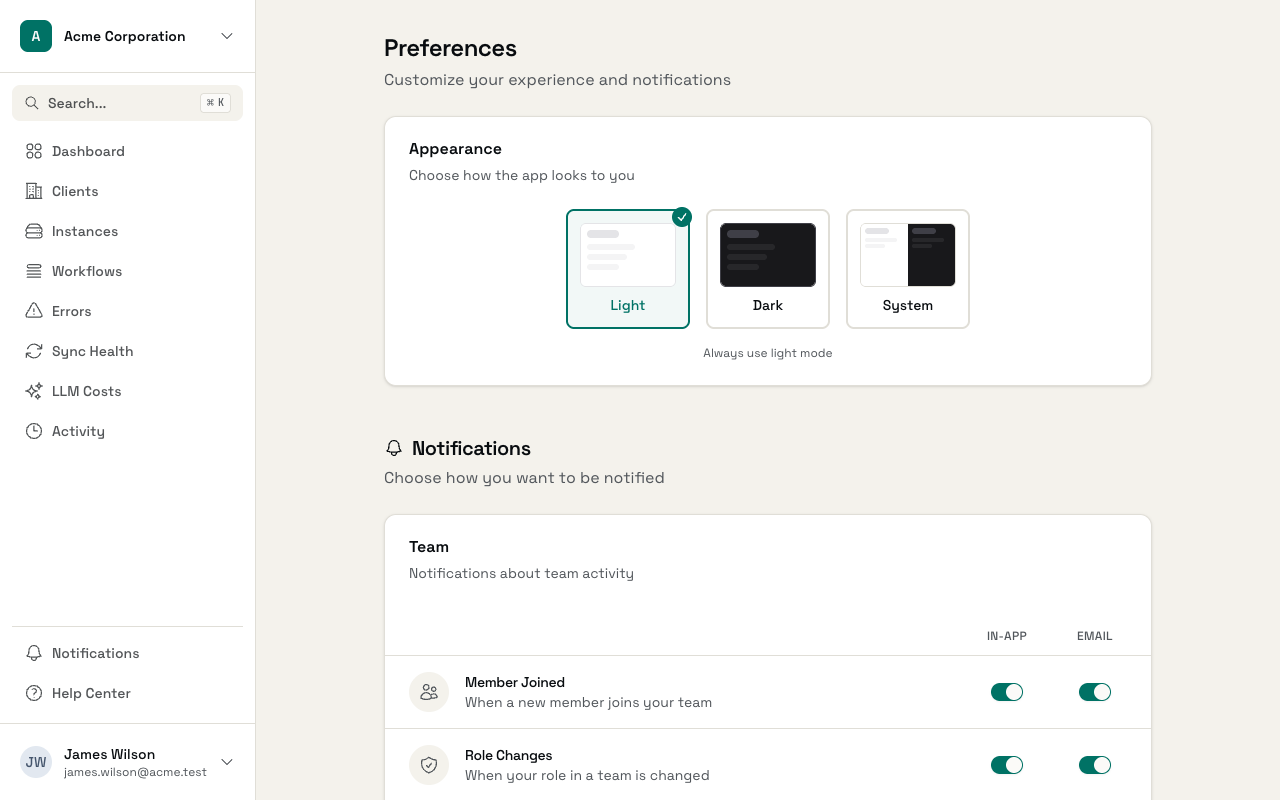
Control which emails you receive. Categories include:
Team emails - Member joined, role changes
Billing emails - Subscription renewals, trial reminders
System emails - Announcements, API rate limit warnings, webhook failure alerts
Certain emails like password resets, email confirmations, security alerts, and team invitations are always sent regardless of these settings.
Setup Checklist
If you previously dismissed the setup checklist:
- Scroll to the bottom of the preferences page
- Click Show Checklist
- The checklist reappears in your sidebar