Let Your AI Assistant See Your Data
Connect Claude Desktop, Cursor, and other MCP-compatible tools to Administrate. Ask questions about clients, workflows, and errors without leaving your AI interface.
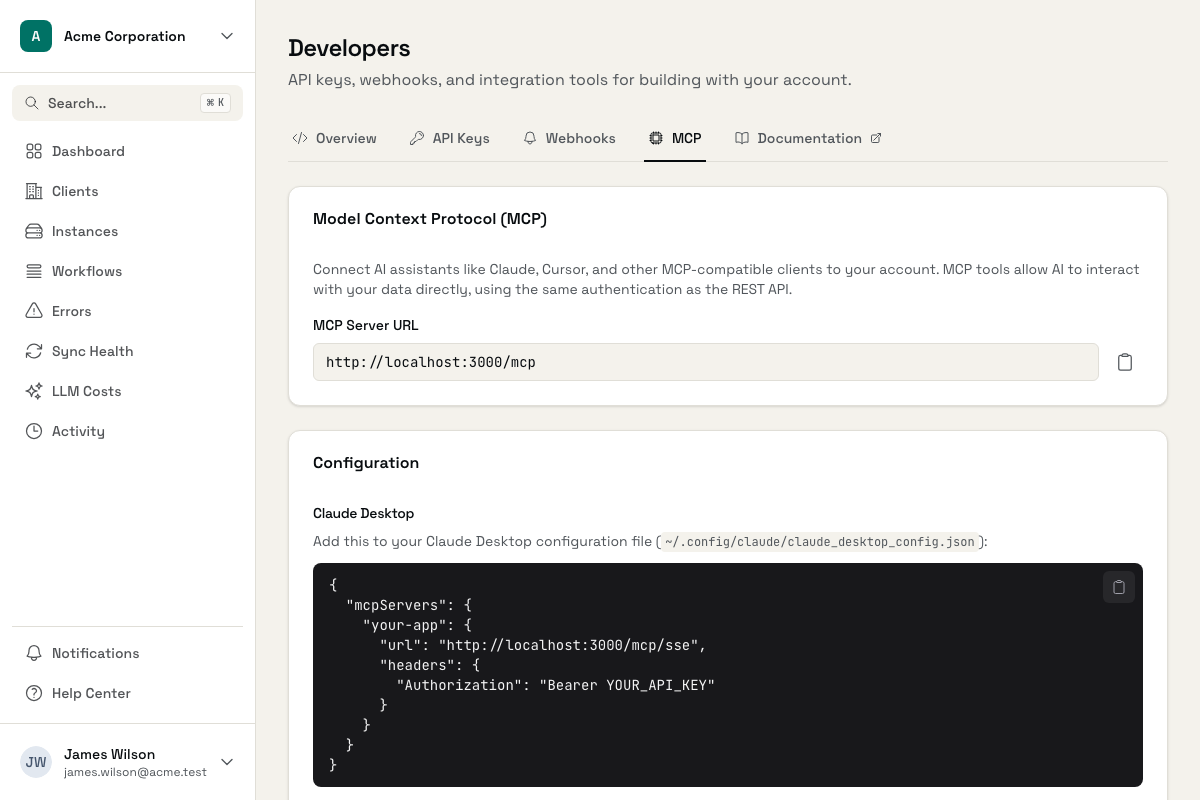
Why Your AI Assistant Needs Data Access
AI is more useful when it can see what you're working with.
AI Assistants Can't See Your Data
You're asking Claude about a client's workflow failures, but it can't access Administrate. You end up copy-pasting data into the chat, losing context and wasting time.
Context Switching Kills Flow
Jumping between your AI assistant and Administrate to look up client info, check error counts, or find workflow names. Every switch breaks your train of thought.
Manual Data for AI Analysis
Your AI assistant could help analyze trends and spot issues, but first you have to export data, format it, and paste it in. The friction kills the value.
AI-Powered Data Access
Give your AI assistant direct access to monitoring data.
MCP Protocol Support
Works with Claude Desktop, Cursor, and other MCP-compatible AI tools. Your assistant can query Administrate data directly.
Query Clients and Instances
Ask your AI to 'list all clients with failures this week' or 'show me the workflows for Client X'. It fetches the data directly from Administrate.
Access Metrics and Errors
Let your AI analyze execution trends, identify problem workflows, or summarize LLM costs. All without leaving your AI interface.
Same Permissions as API
MCP uses the same API tokens with the same permission levels. Read-only tokens stay read-only. IP allowlists are respected.
Real-Time Data Access
Your AI assistant gets current data, not stale exports. Ask about today's errors and get today's answers.
Connect Multiple Accounts
If you manage multiple Administrate accounts (for different agencies or clients), connect them all. Your AI can query any of them.
Simple Setup, Powerful Access
Connect your AI tools and start asking questions.
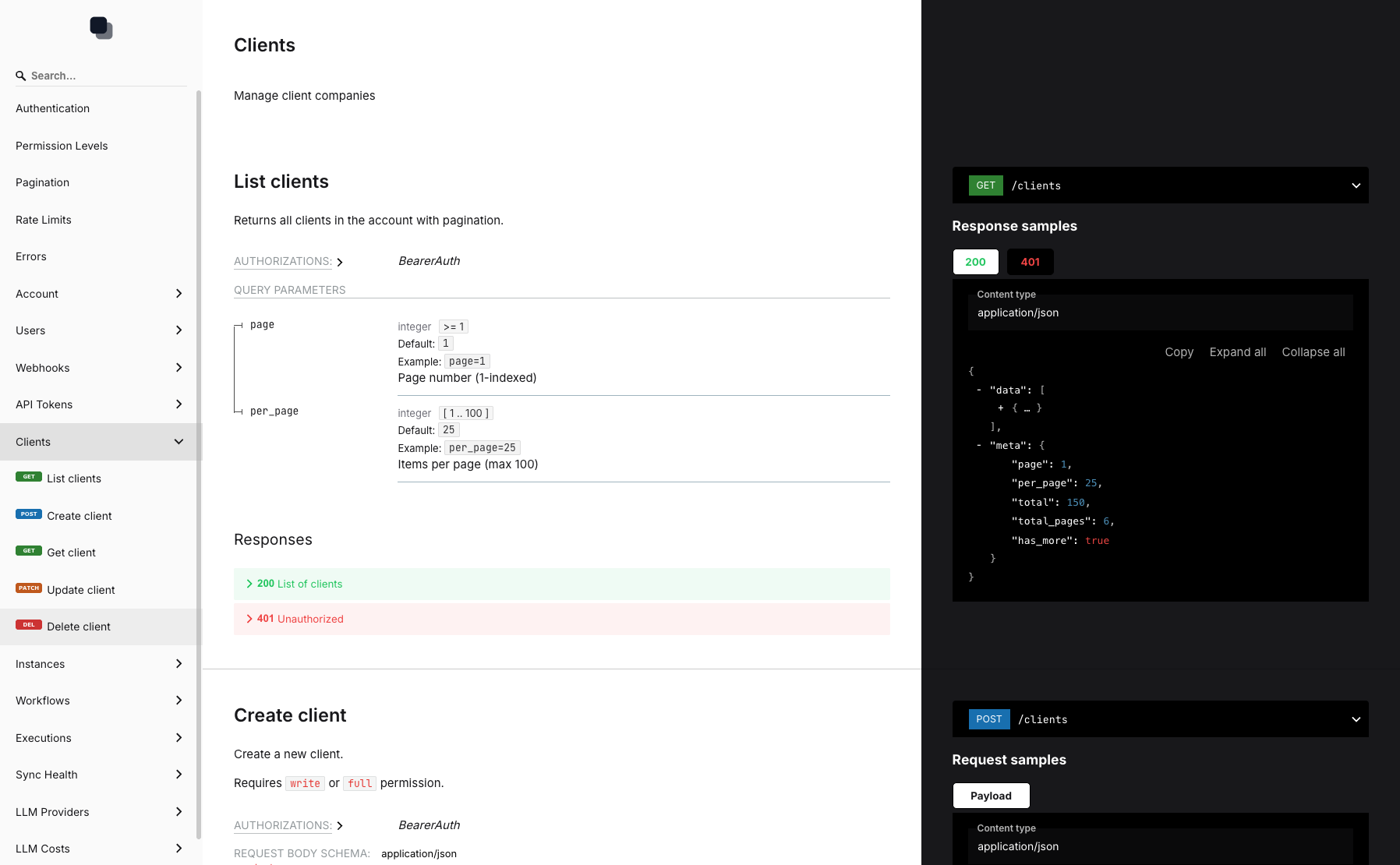
MCP Configuration
Simple setup with your API token and server URL
AI Assistant Integration
Query Administrate data directly from Claude or Cursor
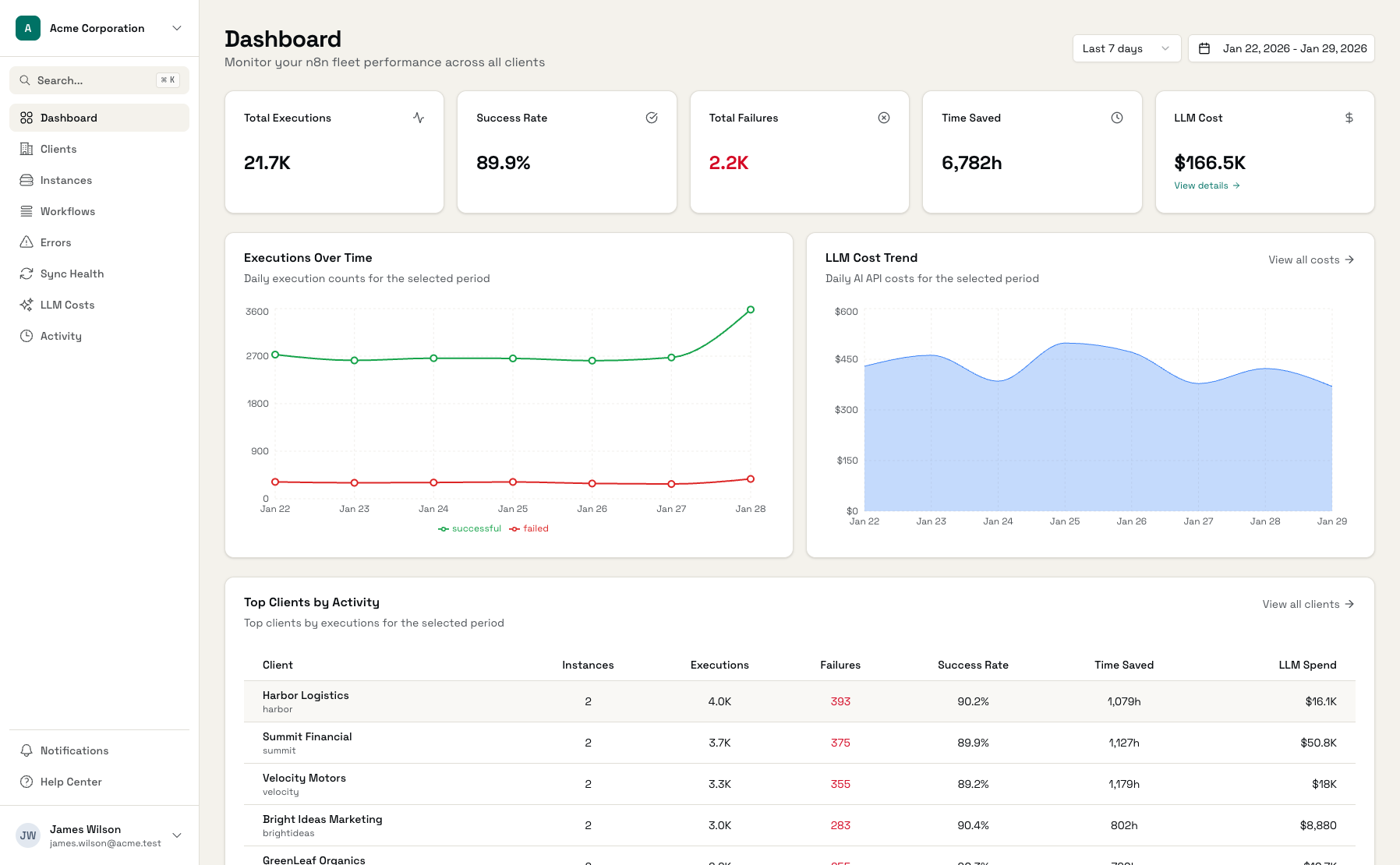
Data Access
Clients, instances, workflows, and errors available to your AI
Connect Your AI in Minutes
Create API Token
Generate a token with read or write access
Configure MCP Client
Add the server URL and token to Claude Desktop or Cursor
Start Asking Questions
Your AI can now query clients, workflows, and errors
Frequently Asked Questions
What is MCP?
Which AI tools support MCP?
Is this secure?
What data can my AI access?
Do I need a paid plan?
How do I set it up?
Make Your AI Assistant Smarter
Connect to Administrate and let your AI help you manage clients and workflows.